
Here is the usual order of steps. Plan on about ten minutes once the text is ready.
- Go to Posts and click Add New Post.
- Type the title at the top.
- Paste in the article text. If you are copying from Word or Google Docs, paste with Ctrl+Shift+V so the odd formatting stays behind. Use the + button for headings, images, quotes and lists.
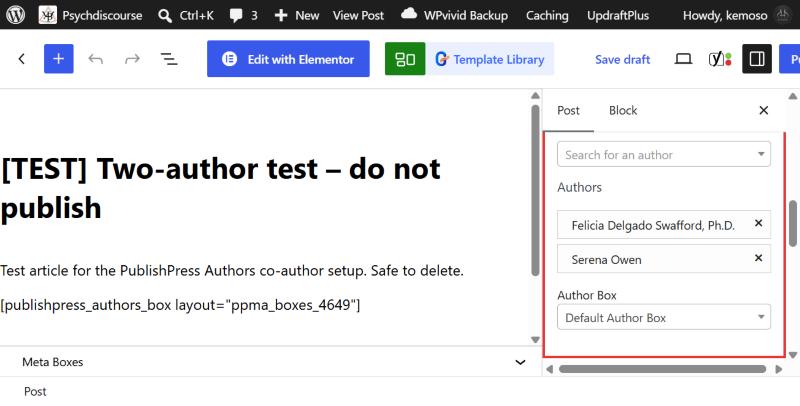
- Open the Authors panel on the right and add everyone who wrote the piece. There is a full walkthrough on the next page.
- Tick at least one category, for example Black Wellness or Research Corner.
- Click Set featured image and upload a landscape photo, ideally 1200 px wide or more. Fill in the alt text while you are there.
- Write a short excerpt of one or two sentences. This is the summary people see on the category pages.
- Scroll down to the Yoast box and add a meta description of around 150 characters.
- Click Preview and check the article on your phone as well as your computer.
- When you are happy, click Publish and confirm. If it should go out later, click the date next to Publish and pick a day and time first.
Keep any references at the end of the article under a heading called References.