
Every article should list the people who actually wrote it. You can add as many co-authors as you need, and the article will then appear on each of their author pages.
Adding an author
- Open the article from Posts, then All Posts.
- Find the Authors panel in the right sidebar.
- If the name already in there is not the real author, click the x next to it to remove it.
- Start typing the author’s name in the search box and click their name when it appears.
- Click Update (or Publish if it is a new article).
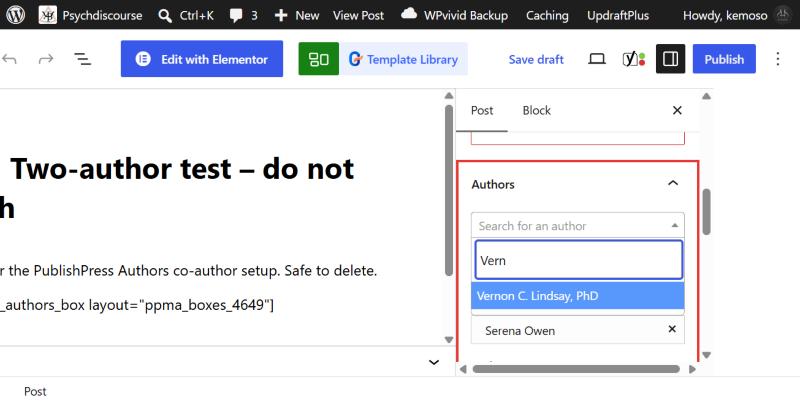
Adding co-authors
Repeat the search for each extra author. The first name in the list is treated as the lead author and shows first on the article. Click Update when you are done.
If you search for someone and get No results found, they do not have a profile yet. You can’t create one from inside the article, so head to Adding a new author first and then come back.
Articles built with Elementor
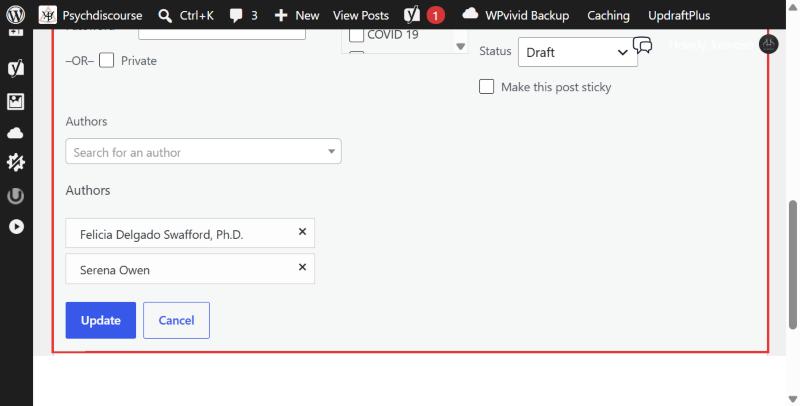
Some older articles open in Elementor, which hides the Authors panel. For those, change the authors from the posts list instead:
- Go to Posts, then All Posts, and hover over the article.
- Click Quick Edit.
- Change the names in the Authors field and click Update.
Public Relations
Use the Public Relations profile only for official ABPsi statements, or when PR is posting a piece on behalf of ABPsi. If PR uploads an article that a named person wrote, credit that person.