
An author’s bio and photo live in their profile. Change them there once and every article they wrote picks up the change. Please don’t type bios into the articles themselves.
- Go to Authors, then Authors.
- Hover over the person’s name and click Edit.
- Make your changes using the table below.
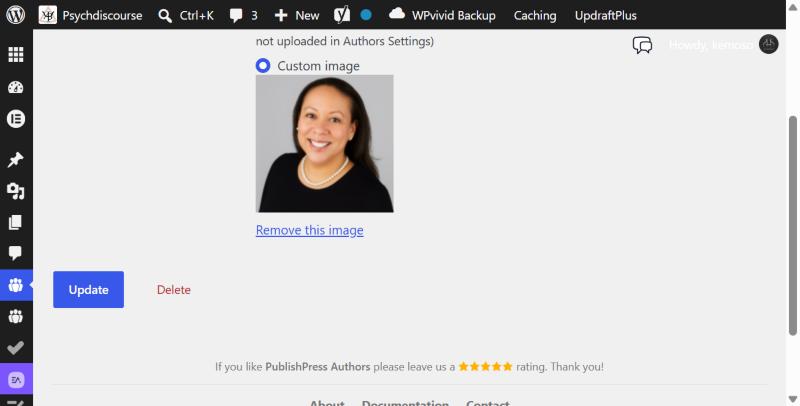
- Click Update at the bottom of the page.
- Open one of their articles to check it looks right.
| Tab | Field | What goes here |
|---|---|---|
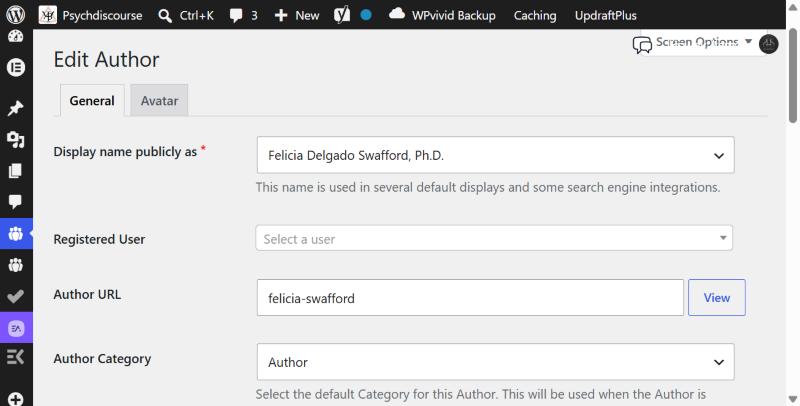
| General | Display name publicly as | Their name as it should appear, with titles if they use them (Dr., Ph.D.) |
| General | Author URL | The end of their author page address, e.g. jane-smith. Keep it short and avoid changing it once articles are live |
| General | Website | Optional. A link to their own site |
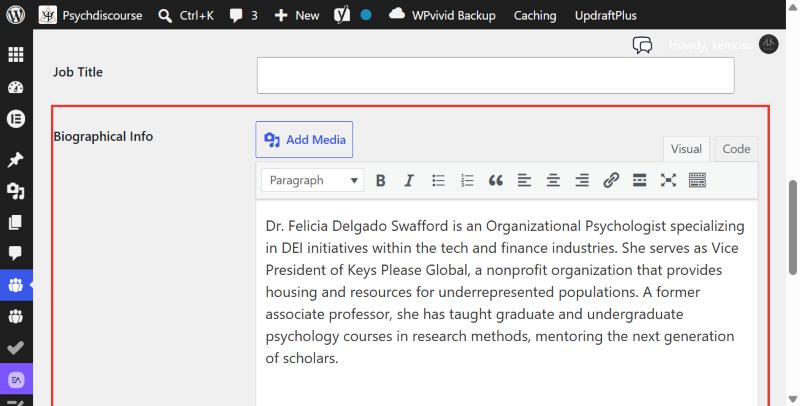
| General | Biographical Info | Two to four sentences in the third person: their role, organisation and focus |
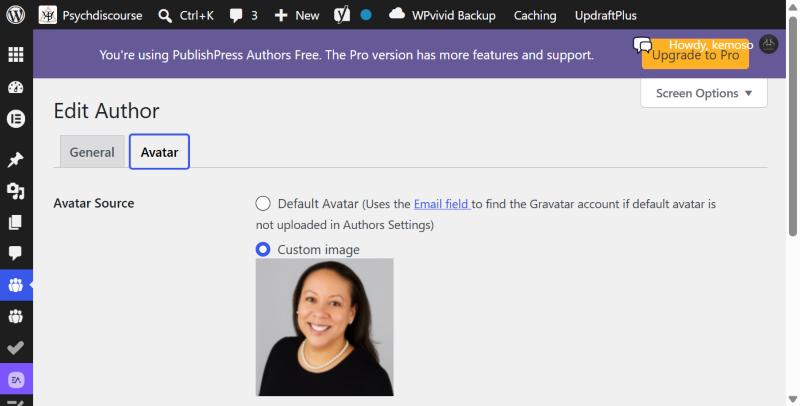
| Avatar | Custom image | Choose Custom image, click Select image and upload a square headshot of at least 300 x 300 px |
Leave Registered User empty. Filling it in links the profile to a login account. Only add an email address if the author is happy for it to be used.
Authors without a photo
Anyone without a headshot shows a grey placeholder circle. As soon as a photo is uploaded to their profile it appears everywhere on the site.